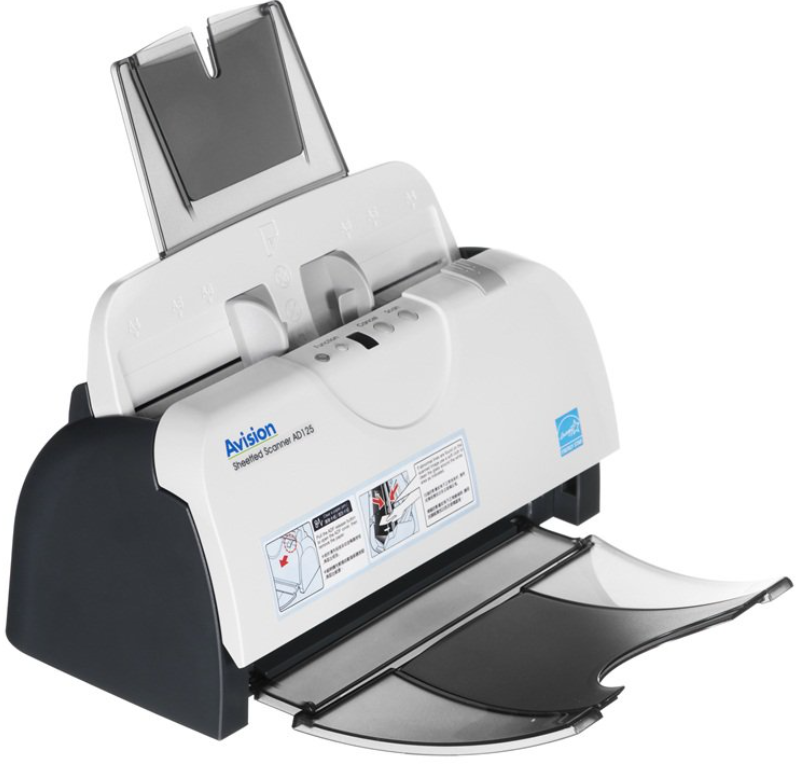
Avision AD125S Sheet-Fed Scanner, Maximum Paper Size: A4-The Avision AD125S is a document scanner designed for small to medium-sized businesses, and
Avision AD125S Review: Features, Specs
Avision AD125S Sheet-Fed Scanner, Maximum Paper Size: A4-The Avision AD125S is a document scanner designed for small to medium-sized businesses, and it has generally received positive reviews for its performance and features.
One of the standout features of the AD125S is its fast scanning speed, with a maximum speed of 25 pages per minute (or 50 images per minute if scanning double-sided). The scanner also has a 50-sheet automatic document feeder, which allows for batch scanning of multiple pages at once.
Users have praised the AD125S for its ease of use and reliability, with the scanner able to handle a variety of document types and sizes. The scanner is also compact and easy to transport, making it a good option for businesses that need to scan documents on the go.
However, some users have noted that the software provided with the scanner can be somewhat limited, with few advanced features beyond basic scanning and file management. Additionally, while the scanner can handle a variety of document types, it may struggle with more delicate or crumpled documents.
The Avision Document Scanner AD125S is a quality scanner that incorporates features such as an automatic document feeder (ADF). With its lightweight body, it strikes the right balance between portability and function. Avision Document Scanner AD125S has an optical scanning resolution of 600 DPI. The ADF allows you to set up to 50 sheets to be scanned automatically. One-pass duplex scan also supports scanning at speeds up to 25 ppm / 200 dpi. This sophisticated scanner from Avision is perfect as an additional piece of equipment in your office.
Overall, the Avision AD125S is a solid option for businesses that need a fast and reliable document scanner that can handle a variety of document types and sizes.
We recommend:Avision AEG-AN335W Review and Specification
General Specification⭐
- Technology Color Charged-Coupled Device (CCD)
- Light Source LED
- Document feeding modeADF
- Optical Resolution (dpi) 600
- File Formats BMP, PNG, GIF, JPEG, Single-Page PDF, Multi-Page PDF, Multi-TIFF, TIFF, RTF, TXT, OCR(for iScan only), XPS, DOC, XLS, PPT, DOCS, XLSX, PPTX, HTML
- Grayscale mode 16bits input 8bits output
- Color mode 48bits input 24bits output
- Dimensions (WxDxH)308 x 446 x 329 mm( 12.1 x 17.6 x 13 in )
- Weight 2.34Kg
- Interface USB 3.0
- OS Support Win XP / Win Vista / Win 7 / Win 8 /Win 8.1/ Win 10
- Bundled Software Twain Driver,ISIS Driver,Button Manager,AVScan X,PaperPort 14
Features
- Ultrasonic paper jam detection Yes
- Long Paper Mode Yes
- Card Scan Yes
Scan Size
- ADF Minimum 50 x 63.5 mm (2 x 2.5 in )
- ADF Maximum 216 x 356 mm (Legal)( 8.5 x 14 in )
- ADF Capacity50 sheets
- Paper Thickness and Weight 34 ~ 127 g/m² ( 9 to 34 lb )
Scanning Speed
- ADF Speed (ppm)Simplex : 20 ppm Duplex : 40 ipm
Who This Driver Guide Is For
- Home users installing a printer for the first time
- Users upgrading to Windows 11 or macOS Sonoma
- Offices experiencing printer offline or driver errors
System Compatibility
| Operating System | Supported |
|---|
| Windows 11 / 10 | Yes (64-bit) |
| Windows 8.1 | Limited |
| macOS Sonoma / Ventura | Yes |
| Linux | No official support |
Avision AD125S Scanner Driver🖨️
World Card Team V3.0.0.0(WCT) 235 MB Win 7 , Win 8 , Win 10 , Win 11
DownloadButtonManager V2 V3.0.0.0 595 MB Win 7 , Win 8 , Win 10 , Win 11
DownloadAVScan X V1.2.1.1 549.70 MB Win 7 , Win 8 , Win 10 , Win 11
Download
Drivers
AD125S VB.20 27.38 MB Win XP, Win Vista, Win 7, Win
DownloadWhy Printer Drivers Often Fail After Installation
- Windows Update replaces manufacturer drivers
- Unsigned or outdated driver packages
- Incorrect USB or network configuration
- macOS security restrictions blocking extensions
Windows Installation Steps
- Remove previous drivers from Device Manager
- Restart the system
- Install the latest official driver
- Reconnect the printer when prompted
macOS Installation Steps
- Download the compatible driver version
- Allow system extension in Security Settings
- Add printer manually from System Settings
Common Problems and How to Fix Them
Printer Detected but Not Printing
This usually occurs when the wrong driver version is installed or the print spooler service is not running.
Scanner Not Working After Driver Install
Ensure WIA (Windows Image Acquisition) service is enabled and the scanner driver is installed separately.
Related Printer Guides
Important Disclaimer
ToolDrivers is an independent technical resource and is not affiliated with any printer manufacturer. All trademarks belong to their respective owners.
Driver / Printer / Avision Scanner AD125s
Updated 2026 — Complete guide to driver download, specifications, performance, and business usage.
Product Rating:
★★★★★
4.8 / 5 (128 votes)
Overview
This article provides a complete guide for driver installation, key features, and the latest operating system compatibility.
Key Features
- Fast and stable installation
- Support for the latest Windows versions
- High-quality print performance
Driver Download
Download Official Driver
Conclusion
This product is suitable for home users and small businesses thanks to its stable performance and low operating cost.