Xerox WorkCentre 5020 Review: Features, Specs
Overview & Positioning
The Xerox WorkCentre 5020 is a monochrome laser A3 multifunction printer (MFP) — offering print, copy and scan in a single machine. It’s targeted at small to medium offices (or departments) that need a relatively compact but capable device to handle document workflows involving larger paper sizes (up to A3), scanning and copying — without needing a large imprint of a full production printer.
The 5020 aims to consolidate multiple devices (printer, copier, scanner) into one, thereby saving space, reducing overhead on consumables and simplifying maintenance. Given today’s trend to digitize documents, its built-in scanning also helps offices reduce paper clutter while still maintaining a physical print/copy option.
In short: the WorkCentre 5020 is a “do-it-all, cost-effective, monochrome office MFP” — ideal for business documentation, archiving, and light to moderate print/copy/scan volume, especially when A3 support or duplex printing is useful.
Key Specifications & Features
Here are the main specs and capabilities that define what the 5020 can (and cannot) do:
Print / Copy / Scan / Paper Handling
-
Print speed: Up to 20 pages per minute (ppm) (A4 / letter) for monochrome.
-
Print resolution: 600 × 600 dpi (standard), with enhanced mode up to 2400 × 600 dpi for improved quality.
-
Copy speed: Comparable to print — up to ~20 ppm.
-
Copy resolution: 600 × 600 dpi.
-
First-copy / first-page-out time: According to user guide: first page output as low as ~7.5 seconds (depending on job/configuration) for copy/print.
Scan resolution: 600 × 600 dpi (optical).
-
Supported paper sizes: From small to large — A3 down to smaller formats; supports custom sizes so long as within spec.
-
Paper capacity: Up to 800 sheets total input (depending tray configuration), which reduces the frequency of reloads.
-
Duplex (2-sided) printing / copying: Supported — helps save paper for double-sided documents.
Functionality & Business-Oriented Features
-
3-in-1 multifunction: print, copy, scan — consolidates multiple office devices.
-
Supports larger format paper (A3), giving flexibility for posters, larger charts, architectural drawings, spreadsheets, foldouts — valuable for many business contexts.
-
Cost-saving modes: Power Save and Toner Save modes help reduce electricity and consumable expense.
-
User / Account Control: Supports Multiple-Account Mode — up to 10 password-protected user accounts, each with their own job quotas / limits. This helps you track and control usage per user / department, which is useful in shared office environments.
-
Shared printing / network integration: The 5020 is designed to be shared across a workgroup, enabling networked printing.
Physical & Environmental / Build Details
-
Weight: ~ 32 kg (70.4 lbs) — sturdy but still manageable in a small office setting.
-
Footprint / Size: Dimensions roughly 595 mm (W) × 532 mm (D) × 528 mm (H) — should fit in many office spaces, though it isn’t a desktop-tiny device.
-
Paper weight supported: 60–110 g/m² (according to data sheet).
-
Environmental / Power: It’s listed as an ENERGY STAR–compliant device, and supports low-power modes to reduce electricity consumption.
Performance & Real-World Use
Productivity & Workload Handling
In real-world business environments, the WorkCentre 5020 delivers reliable, predictable performance:
-
Its 20 ppm print/copy speed, while modest compared to high-end production printers, is quite serviceable for small to medium offices — sufficient for daily reports, memos, contracts, invoices, internal docs, meeting handouts.
-
The first-page-out time (~7.5 s) helps reduce wait time for urgent single-page jobs — handy for ad hoc printing or copying needs
-
Because of its multi-functionality (print/scan/copy), small businesses may often replace up to 2–3 older devices (printer + copier + scanner) with a single WorkCentre 5020 — saving physical space and reducing overall maintenance overhead.
Flexibility & Paper Handling
-
The support for A3 plus custom-size paper provides flexibility: you can print spreadsheets, large charts, posters, signage, foldout diagrams, architectural / engineering prints — useful for design offices, logistics, HR, admin, etc.
-
The 800-sheet capacity reduces interruptions: for offices that print many pages daily (e.g. reports, student handouts, exam sheets, internal docs), the large tray/bulk capacity helps maintain continuous operation without frequent reload.
Cost-Efficiency & Running Cost
-
Because it’s monochrome (black-and-white) laser, printing costs tend to be lower than color, while still offering most office documentation needs.
-
Energy-saving and toner-save modes help reduce ongoing consumable and electricity costs — a significant factor over many months/years.
Document Management & Workflow
-
With built-in scanning + copying + printing, this machine is well suited for offices doing document archiving, contract scanning, internal distribution of scanned documents, or digitization of paper archives.
-
The Multiple Account Mode is a useful feature for businesses that want to track or limit usage per user or department — helps prevent waste or excessive printing by certain users.
Strengths & Weaknesses – Summary
✅ Strengths
-
All-in-one: print, scan, copy — consolidates office devices, saves space.
-
Supports A3 printing — rare among small/medium office MFPs.
-
Adequate speed (20 ppm) for moderate workload.
-
Large paper capacity (up to 800 sheets) — reduces interruptions for high-volume printing.
-
Duplex printing/copying support — saves paper and creates professional-looking double-sided documents.
-
Cost-saving modes (Toner Save, Power Save) and user-account control — helps manage ongoing costs and track usage.
-
Good for document management workflows (scanning + printing + copy features) — useful for offices digitizing documents.
-
Durable build and modest size — reasonable for shared office space.
⚠ Weaknesses / Limitations
-
Monochrome only — no color printing. That limits use for color documents, marketing materials, or graphics.
-
Print resolution/quality is basic (600 dpi, enhanced 2400×600) — fine for text and standard docs, but not for high-resolution graphics or photo-quality printing.
-
No advanced finishing (stapling, hole punch, booklet, stapler) — basic output only.
-
As a monochrome laser, not suitable for color-heavy workflows.
-
Not ultra-fast — 20 ppm is decent, but for heavy production or very high volume daily printing, a more powerful machine might be needed.
-
Given modern standards, may lack newer networking features (e.g. Wi-Fi, cloud printing) depending on the version and age.
Business Use & Deployment Fit
Given its capabilities, the Xerox WorkCentre 5020 is best suited for these kinds of business environments / use cases:
-
Small to medium offices / workgroups — especially those needing occasional A3 printing/copying, document scanning/archiving, and standard B&W printing.
-
Administrative departments — HR, finance, operations, legal — for printing contracts, forms, reports, policies, scanning and archiving paperwork.
-
Education / Training Centers — producing handouts, worksheets, exam sheets, banners or diagrams on A3, with low color requirement.
-
Logistics, Planning, or Design offices (non-creative) — printing large spreadsheets, floor plans, schematics or layout diagrams in B&W.
-
Shared office spaces / co-working — as a communal MFP for document workflows among various users.
It becomes less suitable when the business requires color printing, high-volume color marketing/graphics, or advanced finishing/finishing features. In those cases, a color laser MFP, color inkjet MFP, or modern production printer may be more appropriate.
Deployment & Maintenance Recommendations
If you choose to deploy the WorkCentre 5020 in a business environment, consider the following tips to get the most value:
-
Use Duplex / Two-Sided Printing as Default — saves paper, reduces costs and presents cleaner documents.
-
Leverage Account / User Limits — enable Multiple Account Mode to track usage per user/department, especially for cost control and auditing.
-
Use Efficient Paper Loading Practices — load bulk 800-sheet supply to minimize interruption; keep spare toner/cartridges handy.
-
Use Power Save and Toner Save Modes — especially for offices that don’t print 24/7; this reduces electricity and consumables cost over time.
-
Schedule Periodic Maintenance — cleaning, drum/toner checks (if applicable), to maintain reliability and print quality.
-
Use Scanning for Digitization & Archiving — encourage scanning & digital storage of documents to reduce paper clutter and streamline workflows.
-
Match Use Case to Capabilities — use the 5020 primarily for text documents, forms, internal reports — avoid using it for needs requiring color or advanced finishing.
Final Verdict
The Xerox WorkCentre 5020 remains a solid, workhorse monochrome A3 laser MFP for offices that need reliable printing, copying and scanning — especially when size, cost and flexibility matter. It’s not flashy, it doesn’t do color, and it doesn’t have advanced finishing, but for everyday business document workflows (contracts, reports, spreadsheets, internal printouts, archiving), it offers a balanced combination of functionality, economy, and simplicity.
Recommended if:
-
Your office primarily needs black-and-white output and occasional A3 printing / copying.
-
You want a single device to replace separate printers, scanners and copiers.
-
Cost efficiency and paper saving (duplex, toner save) matter.
-
You produce moderate volume of documents and want a low-maintenance, durable MFP.
Consider alternatives if:
-
Your work demands color printouts (graphics, marketing, presentations).
-
You need finishing features (stapling, booklet, punch) or high-speed production printing.
-
You expect very high daily printing loads, or need cloud / mobile printing support typical of newer machines.
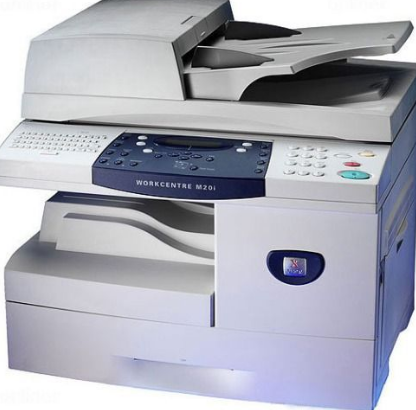
Xerox Workcentre 5020 DN Printer Drivers Download - Free Download Xerox Workcentre 5020 DN Printer Drivers For Windows XP, Windows 7 (32bits), Windows 7 (64bits), Windows 8 (32bits), Windows 8 (64bits), Windows 8.1 (32bits), Windows 8.1 (64bits), Mac OS and Linux.
Xerox Workcentre 5020 DN Printer Driver Download For :
Xerox Workcentre 5020 DN Printer Driver Download For Windows XPXerox Workcentre 5020 DN Printer Driver Download For Windows 7 (32bits)
Xerox Workcentre 5020 DN Printer Driver Download For Windows 7 (64bits)
Xerox Workcentre 5020 DN Printer Driver Download For Windows 8 (32bits)
Xerox Workcentre 5020 DN Printer Driver Download For Windows 8 (64bits)
Xerox Workcentre 5020 DN Printer Driver Download For Windows 8.1 (32bits)
Xerox Workcentre 5020 DN Printer Driver Download For Windows 8.1 (64bits)
Xerox Workcentre 5020 DN Printer Driver Download For Linux
Printer driver Xerox WorkCentre 5020 with Windows 8(64bit)operating system
Printer driver Xerox WorkCentre 5020 with Windows 7 (32bit)operating system
Printer driver Xerox WorkCentre 5020 with Windows 7 (64bit)operating system
Printer driver Xerox WorkCentre 5020 with Windows Server 2008 32bitoperating system
Printer driver Xerox WorkCentre 5020 with Windows Server 2008 64bitoperating system
Printer driver Xerox WorkCentre 5020 with Windows XP 32bitoperating system
Driver Download or the Installation for Windows Operating System:
How to install the driver for Xerox WorkCentre 5020:
- First, you need to click the link provided for download, then select the option “Save” or “Save as”. Clicking “Save” is for downloading the file. Meanwhile if you choose “Run” or “Open”, the file downloaded will be automatically installed after the downloading process is completed.
- For your information, the driver file that you download will be saved in a certain folder that you have set before, especially in the self-extracting form or (.exe format).
- The last step is double clicking the downloaded file that has the format EXE file for the decompress process. Then, the installation will be automatically started.
How to uninstall the driver by using Control Panel.
Note: The following steps are for Windows 7. The different versions may have the different settings.- Come to the Start menu, then you need to choose Control panel --> choose the driver and click “Uninstall a Program.”
- Wait until a page is appear with the list of the installed program. Then you need to double click the program that you want to uninstall.
- At last, choose “Yes” and “Ok”. The uninstall process is completed.
Driver Download or Installation process for Mac Operating System:
How to install driver of Xerox WorkCentre 5020 in Mac:
- First, you need the file of the driver. When you have already completed the downloading process, it will be saved in the certain folder. You can see it at the computer settings.
- Second, you need to double click the downloaded driver file and mount it on the Disk Image.
- The third step is that you need to double click again the mounted Disk Image.
- At last, double clicking the packaged driver file. Do not worry, the installation is about to be started automatically.